
People, users and invitations
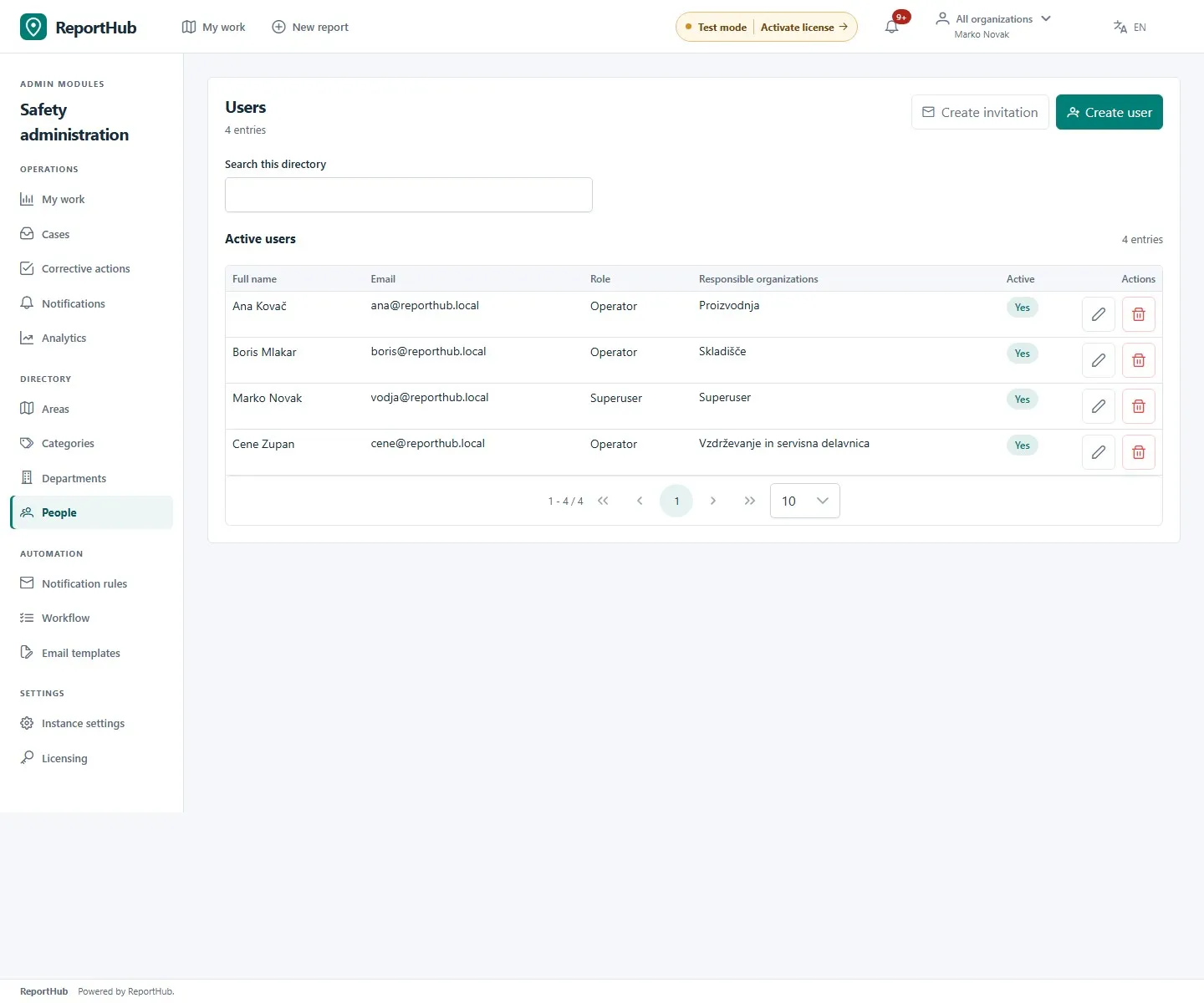
A superuser manages staff accounts through Users in Community or People in VZD. VZD department administrators can view their scoped people directory, but cannot use the superuser’s account-management controls. Community contributor registration is separate from staff provisioning.
Choose a role and memberships
Section titled “Choose a role and memberships”| Role | Intended access |
|---|---|
| Viewer | Read permitted operational data. |
| Operator | Carry out permitted work and own assigned actions. |
| Organization administrator | Coordinate work within assigned organizations/departments. |
| Superuser | Administer the installation and its directories. |
Viewers, operators and organization administrators need at least one organization membership. Superusers use installation-wide access rather than that membership list. VZD’s named department lead and Safety director are separate appointments; a role alone does not appoint a verifier.
If the membership picker is empty, check that active teams exist, open Organizations/Departments from the sidebar, then return to Users/People before opening the editor again.
Invite a staff member
Section titled “Invite a staff member”- Search for an existing account, then select Create invitation.
- Enter the recipient email, role, organizations and validity in days. The invitation editor supports 1–30 days.
- Create the invitation and check the delivery status. With working mail the recipient can receive it by email; otherwise privately hand over the generated access link using the copy control.
- The recipient opens the link and completes the requested account/password steps. A created invitation is not yet a completed staff login.
- Review pending invitations. Remove one when access is no longer needed; issue a replacement if the link has expired or cannot be used.
Keep invitation links private: they grant access setup. Do not paste them into public reports or publish them in documentation.
Create or edit an account directly
Section titled “Create or edit an account directly”- Select Create user, enter first name, last name and unique email, then set the requested initial password.
- Choose role, memberships and Active; save. Use Edit for later changes.
- An entered password must be at least eight characters. When editing, leave the password blank to keep the existing password; do not copy passwords into shared notes.
- Give the person the correct application address and hand over any initial credentials privately. Prefer an invitation or reset link for personal password setup.
Demo interface
Reset access or remove eligibility
Section titled “Reset access or remove eligibility”Use the account’s password-reset-link action when someone cannot sign in, and check its delivery result. A generated link does not prove email delivery. The header organization selector must also match the person’s intended work context.
Before deactivation, role demotion or membership removal, review unfinished work and arrange a handover. VZD reassigns unfinished work to an eligible fallback and preserves historical actors on completed actions. Appoint a replacement before deactivating, demoting or deleting the named Safety director. Do not assume that deleting an account removes the reports or audit history associated with it.
For responsibility appointments, see organizations and departments and workflow controls.