
Assess and manage VZD cases
Sign in to your employer’s application. My work summarizes work and open-report locations within your access. Open Cases to search and filter cases by category, department, status, risk, assignee and dates. Use deadline sorting to find overdue work. Select a report title to open its workspace.
Know your responsibility
Section titled “Know your responsibility”| Role | Typical work |
|---|---|
| Named Safety director | Installation-wide coordination, action verification, report closure and reopening. |
| Named department lead | Coordinate assessment and corrective actions for their department. If no lead is appointed, the Safety director is the fallback. |
| Assigned operator | Work on assigned reports and their own corrective actions within active department access. |
| Viewer | Read permitted information without editing. |
System administration alone does not make a person the named Safety director. The available cases and controls depend on current membership and responsibility. Selecting all organizations in the header does not grant access to other departments.
Assess a new report
Section titled “Assess a new report”- Read the report, intake photos, original location and department. Use Communication and history to check notes and earlier changes.
- Open Assessment & assignment. Check the Event type and choose a Category.
- Set the Risk level: Low, Medium, High or Critical, using your workplace’s assessment procedure.
- Select Assigned to and a Due date, then Save. Category, risk level, assignee and deadline are required to start work.
- Select Start work after the saved assessment is complete. The report moves from New to In progress.
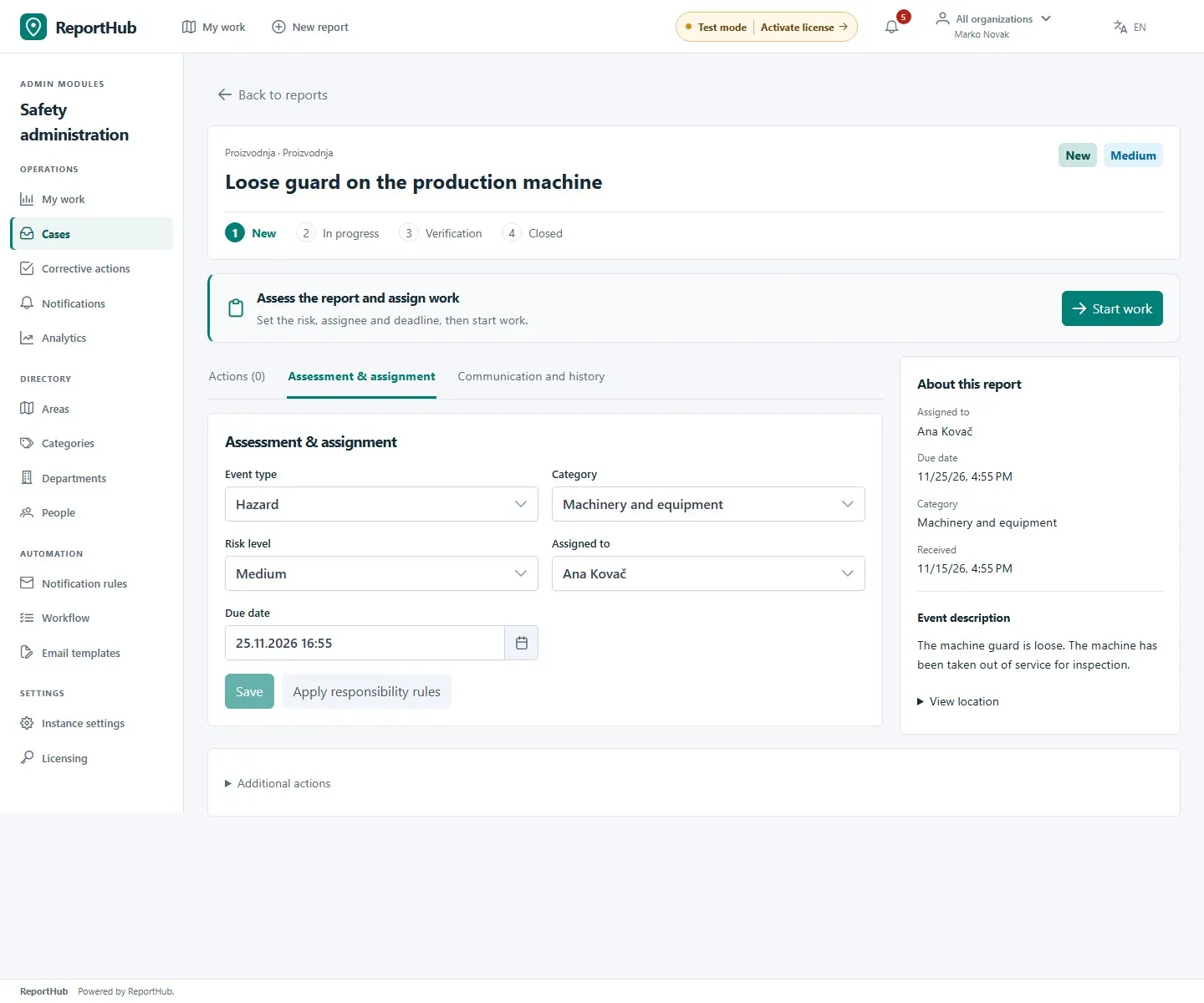
Demo interface
If a requirement is missing, use the requirement links beside the stage controls to reach the relevant field. A saved assessment and an unsaved edit are different; check the save indicator before advancing.
Create and assign corrective actions
Section titled “Create and assign corrective actions”- Open Actions and select New corrective action.
- Give the action a concrete title describing the work to perform.
- Select an Action assignee and Due date. Check them even when they are prefilled from the case.
- Leave photo evidence required unless an explicit exception is appropriate for that action. Select Add action.
- Create separate actions for distinct pieces of work. Use Edit assignment on an unfinished action to adjust its title, assignee or deadline, then Save.
Each action has its own work note and evidence. Intake photos show the original event and do not replace corrective evidence. Send executors to complete their corrective actions.
Review completed work and close the report
Section titled “Review completed work and close the report”Completing the last unfinished action moves the report to Verification. A performed action is frozen until returned for changes.
- As the named Safety director, open the report’s Actions tab. Select each action and inspect its work note, photos or explicit photo exception, executor and completion time.
- Choose Verify action if the work is satisfactory. Every action needs an individual verification.
- If the evidence or work is insufficient, choose Return for changes, enter a meaningful reason and confirm the return. The action becomes editable and the report returns to In progress. Other actions keep their review history.
- After the executor completes the returned work, review it again.
- When all actions are verified and the report requirements are complete, select Close report. Confirm the report is Closed.
A department administrator cannot substitute for the named Safety director’s verification. The director can verify their own work; the history records who performed and verified it. To reopen a closed case, the director supplies the reopening reason and uses Return to work.
Coordinate and follow up
Section titled “Coordinate and follow up”Use Communication and history for internal notes and the audit trail. These messages are for authorized staff, not public updates to the reporter. A report transfer to another department is restricted to superusers and requires a destination and reason; its original event location stays unchanged.
Use Corrective actions for the action queue, Notifications for assignments and deadlines, and Analytics for scoped summaries. The Export menu provides the exports available to your role; contact exports are separately restricted. Protect downloaded data as you would the case itself.
If someone else changes the case, refresh the latest version and review their changes before retrying. Save or deliberately discard drafts when prompted. Missing controls can indicate insufficient responsibility, a frozen performed action, a closed case or read-only licence access.
For department and location setup, see administration.