
Handle Community reports
Use this guide if your organization has given you staff access. Sign in at your instance’s application address and open Admin → Reports. The available reports and actions depend on your role and active organization. A contributor account alone does not grant administration access.
Find and open a report
Section titled “Find and open a report”Search by text or open Filters to narrow the list by category, organization, status and date. Map adds the map view; the list is available without it. Open a report using its title or open-report button. Returning to the list retains your filters and page.
Check the description and photos, the category, responsible organizations, current state and history before taking action. If a report is missing, check the organization selector in the header and clear filters. Selecting all organizations still respects your permissions.
Review publication or a proposed correction
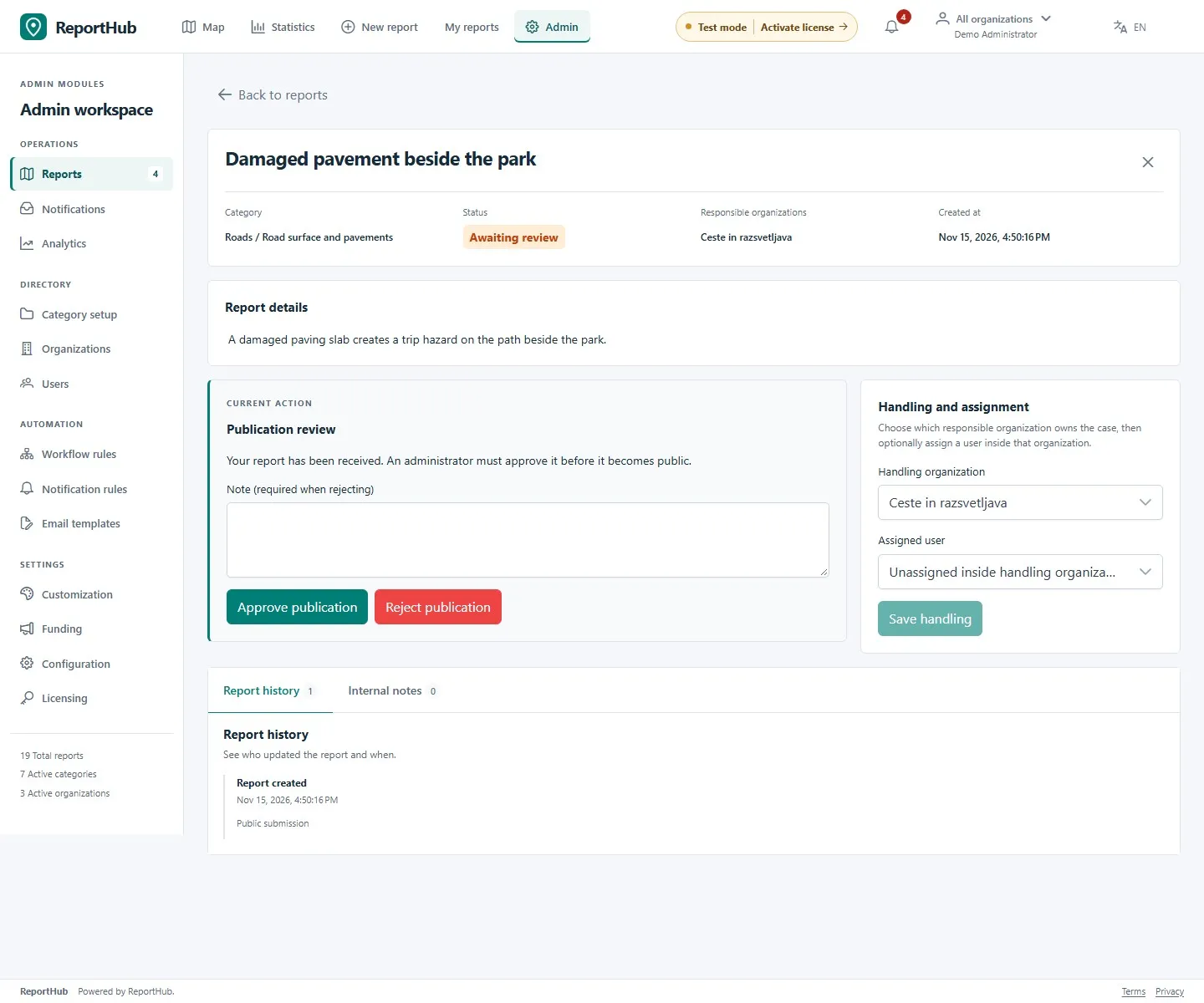
Section titled “Review publication or a proposed correction”- Open a report marked Awaiting review or Change awaiting review. The Current action panel shows the review task.
- Confirm that the content belongs in the service, is understandable and does not expose unnecessary personal information. A submission awaiting email confirmation must be confirmed before publication approval.
- For a new submission, choose Approve publication if it is suitable. To reject it, enter a reason and choose Reject publication.
- For a correction, compare the current and proposed versions, including images and location. Approve or reject the change, with a reason when rejecting.
Demo interface
Publication review is available to authorized organization administrators and superusers. It controls what becomes public; it does not mean that the work has been completed. The previous approved version stays public while a correction is pending.
Set handling and assignment
Section titled “Set handling and assignment”- In Handling and assignment, choose the Handling organization from the responsible organizations available for that report.
- Optionally choose an Assigned user within that organization. Leaving the person unassigned keeps responsibility with the handling organization.
- Select Save handling. Check the saved result before continuing.
If the correct organization or person is unavailable, ask an administrator to check category responsibility, active membership and role. Assignment management is separate from permission to update a status.
Change status and publish an update
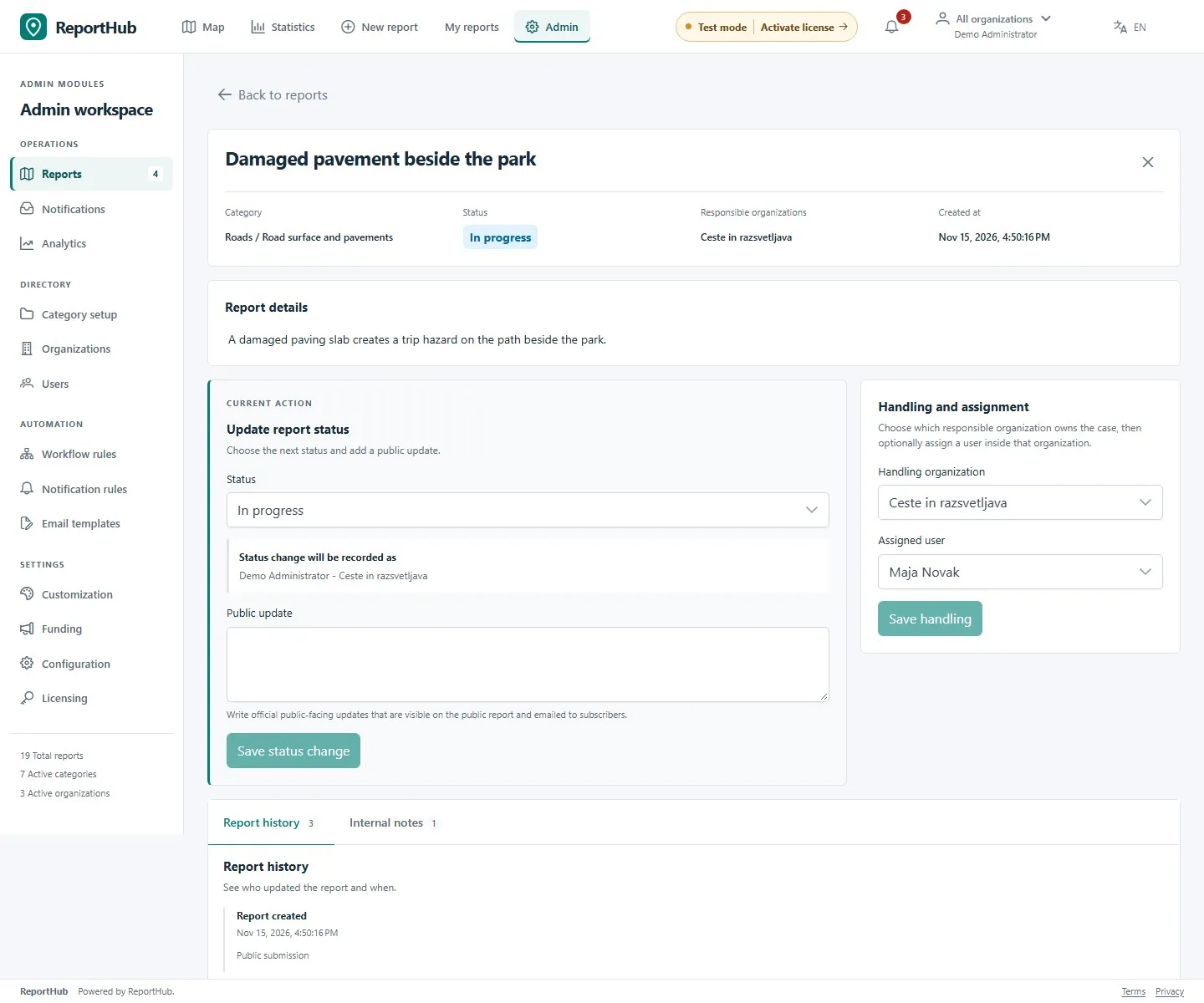
Section titled “Change status and publish an update”- In Update report status, select an available next Status. The choices follow the instance’s workflow rules and your role.
- Write a Public update explaining the action or outcome in language suitable for residents. Complete a note when the workflow requires one.
- Select Save status change and check the resulting state and history.
- Move work to In progress when it is being handled and to Resolved when completed, where those transitions are allowed. Describe the resolution so the public can understand it.
Demo interface
Public updates are visible on the public report and can be emailed to confirmed followers. Do not put internal contact details, private correspondence or work-order secrets in this field. Duplicate handling requires the original report when prompted; check that both reports describe the same issue before merging.
Keep internal communication separate
Section titled “Keep internal communication separate”Open Internal notes, enter the staff-only message and select Add internal note. These notes are separate from the public update field. Use Report history to check publication decisions, assignment and status changes.
If another person changes the report while you are editing, reload the latest version, review their changes and reapply your intended action. Do not assume an unsaved draft was accepted. Use the save controls before leaving the workspace.
Notifications, exports and missing controls
Section titled “Notifications, exports and missing controls”- Open the notification bell or Notifications to follow assignments and review requests. Open a notification to reach the report; available notifications do not widen your report permissions.
- Use Export CSV from the list when you need a file of the available report data. Treat downloaded files according to your organization’s handling rules.
- A viewer can read permitted reports but cannot change them. Missing actions can also mean that publication is pending, the workflow disallows the transition or the instance has read-only access after licence expiry.
Administrators: see people, access and notifications. Residents: see reporting a public issue.