
Report a public issue
Open your municipality’s or service provider’s Community application address. The ReportHub product website does not receive local reports. For an urgent danger, use your organization’s emergency procedure or the appropriate emergency service.
Check the map first
Section titled “Check the map first”- Open Map and search by title, category or status. Select a marker or a report in the list to read its details.
- Check whether someone has already reported the same issue. The report page shows its status and public history.
- If it is the same issue, use the existing report’s link or follow its updates. Create a new report for a separate issue.
Latest shows recent reports. Nearby and the location control can use your position if you allow browser location access. You can browse and place a pin manually without granting that permission. Public positions may be approximate according to the instance’s privacy settings.
Submit a report
Section titled “Submit a report”- Select New report.
- Tap or click the actual location on the map. You can also search for an address or use your current position, then check the pin. Use Change to select another location. If the application restricts reporting to a service area, choose a point inside it.
- Enter a clear Title, such as “Damaged pavement beside the park”. Choose the Category and, where shown, a Subcategory.
- Add a Description: what is wrong, the precise landmark and any useful access information. Avoid personal information and accusations about identifiable people.
- Optionally attach up to three photos, at most 20 MB each. Check the previews and remove unwanted photos before submitting. On a supported phone, Take photo opens the camera. Avoid unnecessary faces, vehicle plates and private documents.
- Continue as a guest, sign in, or choose Create account with this report. If an email address is required, enter one you can access. A registered contributor can choose whether to publish their display name for that report; it is private by default.
- Select Submit report once and wait for the result. Correct any highlighted fields. On mobile, use the form’s step controls to move through location, details and photos.
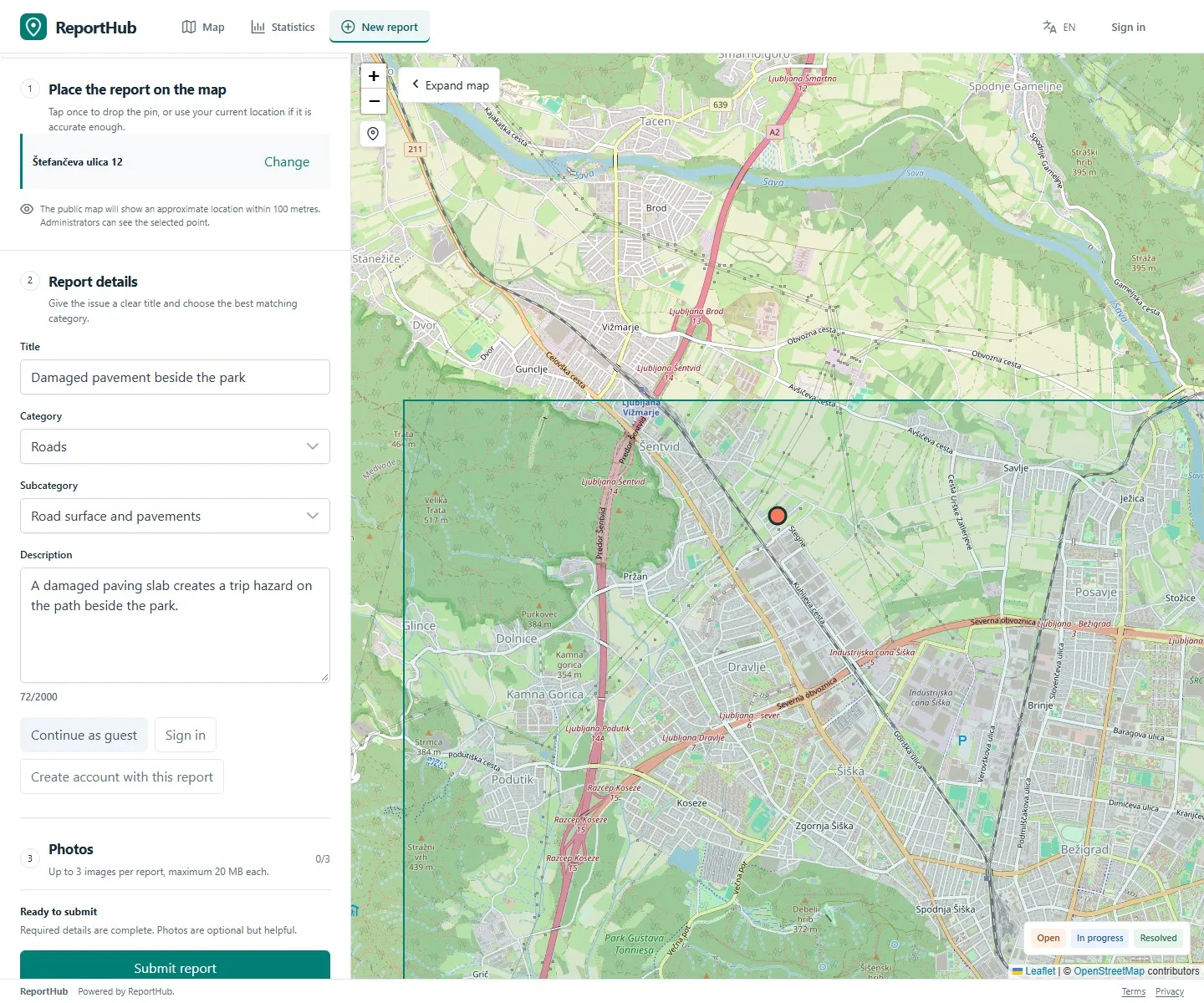
Demo interface
The title accepts 3–120 characters; the description accepts up to 2,000. Photos are optional. If nearby similar reports appear during entry, open them before submitting a duplicate.
Understand the submission result
Section titled “Understand the submission result”| What you see | What to do |
|---|---|
| Email confirmation requested | Open the message and follow its confirmation link. Check junk mail too. A submission awaiting confirmation is not public. |
| Account verification requested | Verify the account using the email link. When you create an account together with a report, that verification also confirms the submission. |
| Awaiting publication review | Your submission was received. Wait for the responsible team to review it; confirmation and publication approval are separate steps. |
| Report created with a detail link | Open the report and save or copy its public link. |
A verified account does not need a separate email confirmation for each later report. Publication review can still apply. If an email does not arrive or a link has expired, follow the resend option when offered or contact the instance administrator. Do not repeatedly submit the same issue to resolve an email problem.
Follow progress
Section titled “Follow progress”Open the public report and read its status, updates and history. If email following is available, enter your address in the follow panel, submit it and confirm the follow link in your email. Updates start after confirmation. Use the unsubscribe link in an update email when you no longer want them.
Public reports commonly move from Open to In progress and Resolved. A duplicate can point to another report. Only the responsible team changes the operational status; a submission does not promise a response or repair date.
Use My reports and make corrections
Section titled “Use My reports and make corrections”- Sign in and open My reports. Open one of your submissions to see its publication state and any review reason.
- For an editable open or in-progress report, choose Edit. Update its title, description, category, point or photos, then submit the change.
- Changes to a published report wait for review. The public continues to see the approved version until the change is approved. You can update or withdraw your pending proposal.
- If an initial submission was rejected, read the reason, choose the correction/resubmission action and fix the reported problem.
- Use the hide-name action to remove your published name when needed. Changing your profile name does not rename earlier published submissions.
Guest reports are not automatically added to an account just because their email matches. Closed or otherwise locked reports cannot be edited through this workflow. Ask the instance administrator about access or a report that you cannot correct.
Staff: continue with handling Community reports.