
Complete corrective actions
This guide is for staff carrying out corrective work. Use your personal staff account at the employer’s application address. A public reporting link or QR code does not give access to the internal workspace.
Find your work
Section titled “Find your work”- Sign in and open My work or My tasks. An assignment notification can also open the relevant report or action.
- Open the assigned action. In the report, select Actions and choose the correct action when there are several.
- Read the action title, assignee, deadline, report context and any return reason. Follow your workplace’s safe work procedure before carrying out the task.
If the assignment is wrong or outside your authority, contact the department lead. You can update execution of your own actions; being able to read a case does not permit changing another person’s action.
Record the work and evidence
Section titled “Record the work and evidence”- Carry out the assigned corrective work.
- Enter a Work note describing what you did and what you checked. Completion requires 3–2,000 characters.
- Choose photos showing the result. Check the selected previews and remove unwanted files. Each action needs its own uploaded photo or an explicit Photos are not required for this action exception.
- Use Save to keep action changes without marking the work performed. Selected photos are uploaded using the upload control or the completion action; selecting a file alone does not upload it.
- When the note and evidence are ready, select Upload photos and mark as performed if photos are waiting, or Mark as performed otherwise. Wait for successful completion.
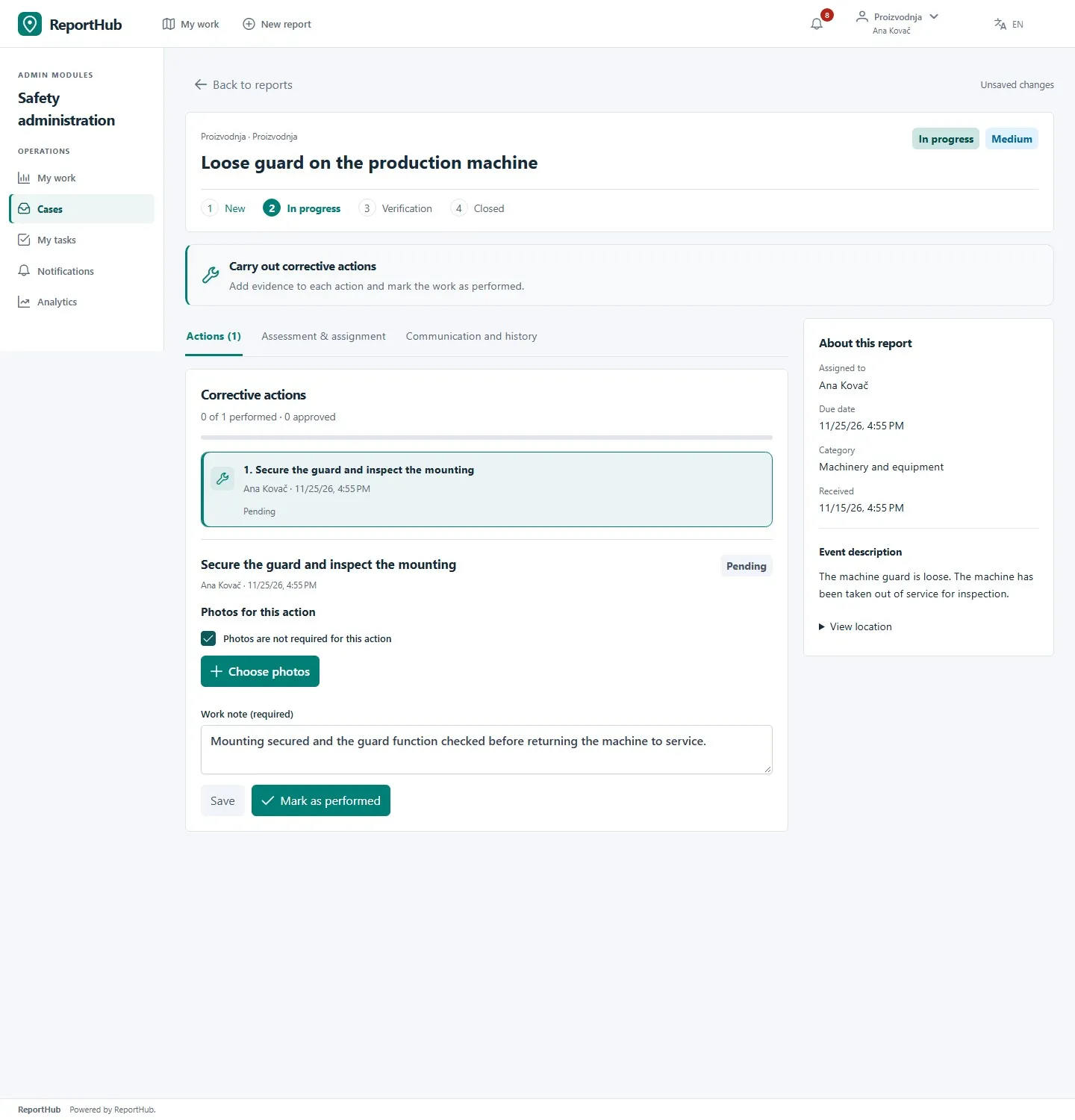
Demo interface
Check that the action has an assignee and deadline and that the report is In progress. The requirement list explains why completion is unavailable. An explicit photo exception applies only to that action; it is visible during review and in history.
Check the result
Section titled “Check the result”A performed action becomes Awaiting review. You cannot edit it until the Safety director returns it. When the last action is performed, the report moves to Verification automatically. Marking work performed does not verify it or close the report.
If the director returns the action, read the reason, do the required additional work, update the note/evidence and mark it performed again. The director then verifies the action. See case review and closure.
If a save or upload fails
Section titled “If a save or upload fails”- Keep the workspace open and read the error. Do not treat a selected file or a disabled button as proof of success.
- A failed photo upload stops completion. Successful uploads remain attached; retry the files still pending instead of duplicating all photos.
- If the case changed concurrently, reload and review the current action before reapplying your changes.
- Save or intentionally discard your draft before leaving. A report closed by the director is no longer editable through ordinary execution controls.
Contact your department lead if the deadline, assignment or required evidence needs changing. For sign-in problems, contact the instance administrator.